
Have you ever spent too much time writing emails, organizing your schedule, researching a topic, or preparing a document? Everyday tasks can quickly fill your day, leaving less time for the work that really matters.
Artificial intelligence (AI) is making many of these tasks easier. You can now use AI tools to brainstorm ideas, summarize information, improve your writing, plan projects, create graphics, and organize your work.
The good news is that you do not always need an expensive subscription to get started. Many popular AI platforms offer free plans, although some features have usage limits.
In this guide, we will explore the 10 best free AI tools for everyday productivity in 2026, explain what each tool does best, and help you choose the right options for your personal or professional needs.
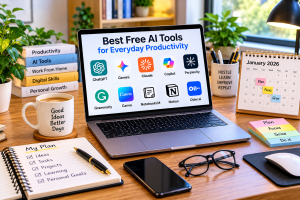
Best Free AI Tools for Everyday Productivity in 2026:
| AI Tool | Best For | Free Access |
|---|---|---|
| ChatGPT | Writing, planning and general assistance | Yes, with limits on some features |
| Google Gemini | Everyday tasks and Google-related workflows | Yes, with feature limits |
| Claude | Writing and document analysis | Yes, with usage limits |
| Microsoft Copilot | Everyday questions and Microsoft-related tasks | Yes, with feature limits |
| Perplexity | Web research and finding sources | Yes, with limits on advanced features |
| Grammarly | Grammar, spelling and writing clarity | Yes, with premium features restricted |
| Canva | Graphics, presentations and visual content | Yes, with some paid assets and AI limits |
| NotebookLM | Researching your own documents | Yes, with usage limits |
| Notion | Notes, planning and project organization | Yes, with plan-dependent AI access |
| Otter.ai | Meeting transcription and notes | Yes, with transcription limits |
Free features and usage allowances can change. Check each provider’s current plan before relying on a particular feature.
1. ChatGPT — Best All-Round AI Assistant:
Website: https://chatgpt.com/
ChatGPT is a versatile AI assistant that can help with writing, planning, brainstorming, learning, research and many other everyday tasks.
Instead of spending time searching for a starting point, you can describe what you need and ask for a structured response. You can also refine the answer by asking follow-up questions.
What can you do with ChatGPT?
- Draft professional emails and messages.
- Create daily schedules and task lists.
- Brainstorm blog topics and content ideas.
- Explain difficult concepts in simple language.
- Summarize documents and analyze supported files.
- Generate ideas for presentations and projects.
- Help with basic calculations and data analysis.
For example, if you have a busy week ahead, you can ask ChatGPT to turn your responsibilities into a realistic five-day schedule.
Example prompt:
“Create a practical weekly productivity plan for someone who works full-time, manages household responsibilities, and has only one hour of free time each evening.”
ChatGPT can help you develop a starting plan that you can adjust to your actual schedule.
Free plan: ChatGPT offers free access to its core assistant, while certain tools and advanced features have separate usage limits. See the official ChatGPT Free Tier FAQ.
Best for: Students, professionals, freelancers, creators and anyone who wants one general-purpose AI assistant.
2. Google Gemini — Best for Everyday Google Workflows:
Website: https://gemini.google.com/
Google Gemini is an AI assistant that can help you generate ideas, understand information, draft content and work through everyday questions.
It is particularly worth exploring if you already use Google services. However, the features available directly in Gemini and those integrated into individual Google applications may differ.
Useful ways to use Gemini
- Brainstorm ideas for projects and assignments.
- Draft and improve emails.
- Summarize information you provide.
- Create outlines for articles and presentations.
- Explain technical topics to beginners.
- Help organize plans and research.
Imagine you are planning a family holiday. You could ask Gemini to prepare a packing checklist, suggest an itinerary structure, and identify questions to research before booking.
Always verify current travel requirements, prices and opening hours before making decisions.
Free plan: Basic access is available, but model access and advanced features may be limited.
Best for: People who use Google services and want an additional AI assistant for everyday planning and research.
Website: Google Gemini
3. Claude — Best for Writing and Long Documents:
Website: https://claude.ai/
Claude is an AI assistant designed to help with writing, analysis, coding and other knowledge-based tasks.
It can be useful when you need to develop a detailed explanation, review a lengthy document, or improve the structure of an article.
What makes Claude useful?
- Drafting and revising long-form content.
- Improving paragraph flow and readability.
- Summarizing documents.
- Organizing research notes.
- Explaining complex ideas.
- Reviewing code and helping troubleshoot problems.
For example, you could provide a draft article and ask Claude to identify repetitive sections, unclear explanations and missing questions that readers may have.
The final article should still be checked for accuracy, originality and relevance.
Free plan: Claude offers a free tier, but usage is limited and availability can vary.
Best for: Writers, researchers, students and professionals who regularly work with documents.
Website: Claude
4. Microsoft Copilot — Best for Microsoft Users:
Website: https://copilot.microsoft.com/
Microsoft Copilot is an AI assistant that can help users ask questions, explore ideas, draft content and complete everyday information tasks.
It can be particularly convenient for people who already work with Microsoft products. However, the free consumer assistant is different from Copilot features included in certain paid Microsoft 365 plans.
Everyday uses
- Drafting emails and messages.
- Brainstorming presentation ideas.
- Summarizing information.
- Preparing meeting agendas.
- Creating outlines for reports.
- Understanding unfamiliar topics.
Suppose you need to prepare for a meeting. You could ask Copilot to create an agenda from a list of discussion points and suggest questions to address.
If you want Copilot to work directly inside Word, Excel or other Microsoft applications, check whether your specific account and subscription include those integrations.
Free plan: A free consumer experience is available, although capabilities depend on the feature and account.
Best for: People who use Microsoft products for personal projects, education or work.
Website: Microsoft Copilot
5. Perplexity — Best for Web Research:
Website: https://www.perplexity.ai/
Research often involves opening multiple pages, comparing information and trying to identify trustworthy sources. Perplexity is an AI-powered search and answer tool designed to make this process more convenient.
It can help you explore a topic, discover relevant webpages and identify sources to investigate further.
How to use Perplexity productively
- Research unfamiliar subjects.
- Find sources for articles and reports.
- Compare explanations from different websites.
- Explore follow-up questions.
- Build an initial reading list for a project.
For example, if you are writing about energy-saving improvements for homes in the UK, you can use Perplexity to discover official guidance and relevant sources.
Open the original sources before publishing factual claims. AI-generated summaries can omit context or misinterpret information.
Free plan: Basic research is available, while advanced searches and some features may be restricted.
Best for: Bloggers, students, researchers and anyone who frequently needs to investigate topics online.
Website: Perplexity
6. Grammarly — Best for Clearer Writing:
Website: https://www.grammarly.com/
Good writing is important when sending professional emails, preparing assignments, publishing blog posts or communicating with customers.
Grammarly helps users improve spelling, grammar, punctuation and clarity. Its AI-assisted writing features can also help refine wording, depending on the plan.
What can Grammarly help you improve?
- Spelling and punctuation.
- Grammar and sentence structure.
- Clarity and readability.
- Professional emails.
- Blog drafts and other written content.
- Tone and word choice.
For example, you can write a rough email and use Grammarly’s suggestions to make it clearer and more professional.
Remember that polished language is not necessarily accurate information. Review suggestions carefully, especially when the text contains technical details or important commitments.
Free plan: Core writing assistance is available, while some advanced suggestions and AI features require a paid plan.
Best for: Students, professionals, bloggers and non-native English writers.
Website: Grammarly
7. Canva — Best for Graphics and Presentations:
Website: https://www.canva.com/
Creating visual content can take time, especially if you are not a professional designer. Canva makes it easier to create graphics, presentations, posters and social media content using templates and a visual editor.
Its AI-powered features can also assist with selected design and content tasks.
What can you create with Canva?
- Blog featured images.
- YouTube thumbnails.
- Social media graphics.
- Presentations and slides.
- Posters and promotional materials.
- Simple visual checklists and infographics.
For example, a small business owner could use Canva to design a consistent set of social media posts without building every design from scratch.
Free plan: Canva offers a free design experience, but some premium templates, assets and AI features are restricted or usage-limited.
Best for: Content creators, bloggers, teachers, students and small businesses.
Website: Canva
8. NotebookLM — Best for Researching Your Own Documents:
Website: https://notebooklm.google.com/
NotebookLM is useful when you need to understand information from your own collection of documents and sources.
Rather than starting with a completely open-ended question, you can build a notebook around supported sources and use it to explore the material.
Practical uses for NotebookLM
- Summarizing research documents.
- Studying notes and course materials.
- Finding key themes across sources.
- Preparing questions for revision.
- Creating structured study notes.
- Understanding lengthy reference material.
Imagine you have collected several reports for a research project. You can add supported sources to a notebook and ask questions about the information they contain.
Check the citations and original passages before using the findings in a published article or academic assignment.
Free plan: NotebookLM offers free access with usage limits. Supported source types and allowances may change.
Best for: Students, researchers, teachers and people who regularly work with multiple documents.
Website: NotebookLM
9. Notion — Best for Notes and Project Organization:
Website: https://www.notion.so/
Notion is a workspace for organizing notes, tasks, projects, databases and reference materials. It can be especially useful when you want to keep your work in one structured location.
AI features and their availability depend on the current plan, so do not assume every AI capability is included without charge.
Ways to use Notion
- Maintain a daily task list.
- Organize a content calendar.
- Track project progress.
- Store research notes.
- Create reusable checklists.
- Organize personal goals and learning plans.
For example, a blogger could create a content database with columns for article title, target keyword, publication date, draft status and internal links.
Even without advanced AI features, a well-organized workspace can improve productivity.
Free plan: Notion offers a free plan for individual use, but AI access may be limited or subject to plan-specific conditions.
Best for: Bloggers, freelancers, students and people managing several ongoing projects.
Website: Notion
10. Otter.ai — Best for Meeting Notes and Transcription:
Website: https://otter.ai/
Taking notes during a meeting can be difficult when you are also expected to participate in the discussion. Otter.ai helps convert supported audio into text and can assist with organizing meeting notes.
Its usefulness depends on the recording quality, language support, speaker recognition and your available transcription allowance.
Practical uses
- Transcribing eligible meetings.
- Reviewing important discussion points.
- Creating searchable meeting notes.
- Identifying action items from a transcript.
- Revisiting recorded interviews, where permitted.
For example, a freelancer could use a permitted recording of a client meeting to prepare a written summary and a list of agreed next steps.
Always obtain any required consent before recording conversations. Do not upload confidential discussions without appropriate authorization.
Free plan: Otter.ai provides a free tier with limits on transcription minutes and other capabilities.
Best for: Professionals, students, interviewers and teams that need searchable notes.
Website: Otter.ai
How to Choose the Right Free AI Tool
You do not need to sign up for every AI platform. Start with the task you want to improve and select the simplest tool that meets your needs.
| Your Main Need | Tool to Try First |
|---|---|
| General productivity and brainstorming | ChatGPT |
| Google-related workflows | Gemini |
| Long-form writing and document analysis | Claude |
| Microsoft-related tasks | Copilot |
| Web research and source discovery | Perplexity |
| Grammar and writing clarity | Grammarly |
| Graphics and presentations | Canva |
| Research from your own documents | NotebookLM |
| Notes and project tracking | Notion |
| Meeting transcription | Otter.ai |
A simple way to get started
Step 1: Choose one recurring task that consumes too much time.
Step 2: Try one free AI tool for that specific task.
Step 3: Compare the result with what you would normally produce.
Step 4: Check the output for mistakes and make the necessary corrections.
Step 5: Keep using the tool only if it genuinely improves your workflow.
This approach helps you avoid spending time learning tools that do not solve a real problem.
Five Tips for Using AI Tools More Effectively:
1. Give clear instructions
Instead of asking, “Help me with work,” describe the task, audience, desired format and any relevant constraints.
A specific prompt usually produces a more useful starting point.
2. Provide relevant context
If you need an email, explain who will receive it and what you want to communicate. If you need a plan, mention your time limits and priorities.
Avoid including sensitive personal or business information unnecessarily.
3. Verify important information
AI tools can make mistakes, invent details or provide outdated information. Verify important facts, figures, legal requirements and other consequential claims against reliable sources.
4. Understand free-plan limitations
Free access does not always mean unlimited usage. Message allowances, AI credits, file uploads, research features and advanced capabilities may be restricted.
Review the provider’s current terms before building a regular workflow around a particular feature.
5. Protect your privacy
Do not casually upload passwords, financial account details, confidential documents or sensitive customer information. Review the privacy controls and data policies of each service.
For workplace use, follow your employer’s rules about approved AI tools and information sharing.
Frequently Asked Questions
What is the best free AI tool for everyday productivity?
ChatGPT is a strong starting point for general tasks such as brainstorming, drafting, planning and explaining information. However, the best choice depends on your needs. Canva is more appropriate for visual design, while Perplexity is useful for web research.
Are free AI tools really free?
Many popular AI services offer a free plan, but certain features, usage allowances and advanced capabilities may require payment. Always check the current plan details and whether a service offers a permanent free tier rather than only a temporary trial.
Can AI tools save time at work?
Yes. AI tools can help with first drafts, summaries, task planning, research and repetitive writing. The amount of time saved depends on the task, the quality of your instructions and how much checking is required.
Are free AI tools safe to use?
Safety depends on the provider, your settings and the information you share. Avoid entering sensitive information unnecessarily, review privacy policies and verify important outputs before acting on them.
Can students use AI tools for studying?
Yes. AI tools can explain concepts, generate practice questions, summarize permitted study materials and help organize revision schedules. Students should follow their institution’s academic-integrity rules and make sure they understand the material themselves.
Can bloggers use AI to write articles?
AI can help bloggers brainstorm, structure, research and edit articles. However, publishing large quantities of generic or unverified AI-generated text is not a reliable SEO strategy. Add original insights, useful examples, accurate sources and meaningful editorial review.
Which free AI tools are best for small businesses?
ChatGPT can assist with drafting and planning, Canva can help create marketing visuals, Grammarly can improve written communication, and Notion can organize projects. Choose tools according to your business needs and privacy requirements.
Final Thoughts
Free AI tools can make everyday work more manageable when you use them for the right tasks. You might use ChatGPT to plan your day, Grammarly to polish an email, Canva to create a graphic or NotebookLM to explore your research materials.
The goal is not to use the largest number of AI tools. It is to find a few reliable options that help you work more clearly, save time and make better use of your attention.
Start with one tool, test it on a real task and evaluate the results before adding another to your routine.
Which free AI tool has helped you the most? Share your experience and the tasks you use it for.
Official Resources
- ChatGPT
- Google Gemini
- Claude
- Microsoft Copilot
- Perplexity
- Grammarly
- Canva
- NotebookLM
- Notion
- Otter.ai
Editorial note: Free-plan features and restrictions were reviewed against available product information in October 2026. Providers may change their offerings, so confirm current details before publishing or making purchasing decisions.